Why I stopped dual booting Windows, Linux, and Proxmox
If you want to install Debian and Windows in a dual boot setup, then later install Proxmox, you are not alone. A lot of people start there. I did too. But after testing the usual dual boot routes, I found that running Windows and Linux side by side on Proxmox is a cleaner way to use one machine for both worlds.
The short version is this: yes, it is possible to dual boot Windows and Proxmox. But Proxmox is not really designed for dual booting, and the installer can wipe a disk if you are careless. In 2025, the better path for most people is simple: install Proxmox as the host, run Linux containers or VMs as needed, and run Windows as a VM when your license and hardware allow it.

That said, there are cases where dual boot still makes sense. Gaming with strict anti-cheat is the big one. Some Windows OEM licenses are another. So this post is not a blind "VM everything" pitch. It is the practical setup I would recommend after reading through Proxmox forum threads, user reports, and current advice.
Can you dual boot Windows and Proxmox?
Yes, technically you can dual boot Windows and Proxmox. But that answer needs context.
On the Proxmox forum, experienced users repeatedly point out that Proxmox VE is meant to run like a server, on real hardware, all day, every day. It is not built like a desktop-first Linux distro with a friendly dual boot wizard. That is why people keep asking for a step-by-step guide and rarely get a simple one.
What usually works best is one of these two layouts:
Two-drive setup
- Install Windows on one drive
- Install Proxmox on another drive
- Use your BIOS or UEFI boot menu, often with F12, to choose which drive to boot
Proxmox-first virtualization setup
- Install Proxmox on the machine
- Run Windows as a VM
- Run Linux workloads as containers or VMs
The first option is the safer version of dual boot. The second option is the cleaner version of side-by-side use.
What I do not recommend for most people is trying to force Proxmox and Windows into a normal same-drive desktop dual boot layout. Several users reported that Proxmox may appear in BIOS but not behave like a polished Linux-plus-Windows boot menu entry. Others noted that a fresh Proxmox install can take over a whole disk.
Why running Windows as a VM on Proxmox feels better than dual boot
Dual boot sounds nice until you actually live with it.
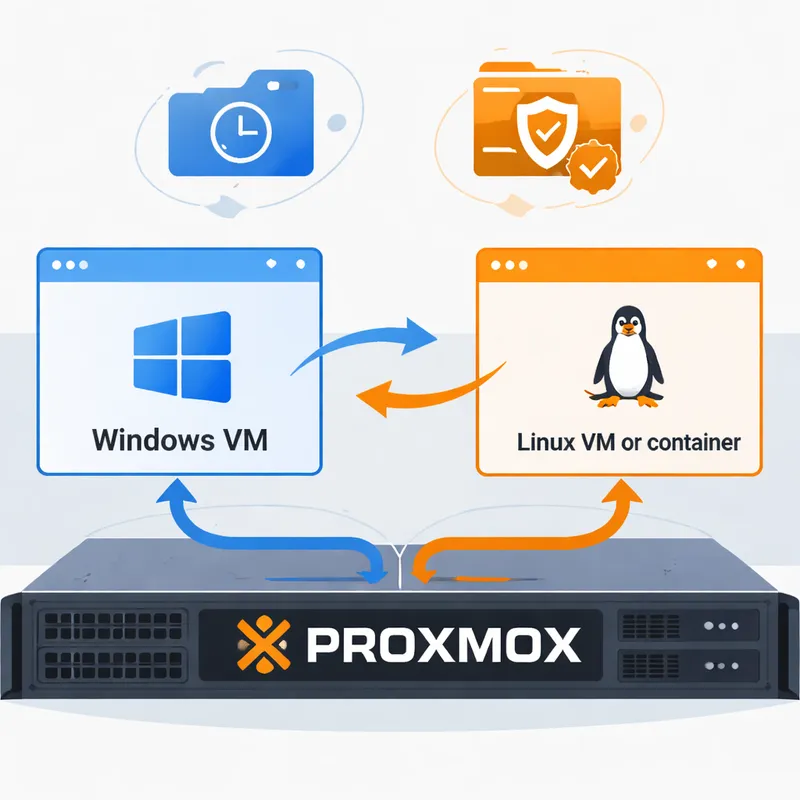
You reboot to switch tasks. You stop your workflow every time you need one app from the other OS. You also lose one of Proxmox's best features: snapshots. A Windows VM on Proxmox gives you a faster rollback path than waiting around for Windows recovery tools.
Here is why I prefer side-by-side over dual boot:
- Both environments are available without rebooting
- Snapshots make testing safer
- Backups are easier to automate
- Linux stays your stable host
- Windows becomes a disposable workspace when needed
For development, labs, browser testing, office apps, and many admin tasks, this setup is simply more pleasant. If you tune the VM properly, especially with CPU set to host and good storage, it can feel surprisingly close to bare metal for everyday use.
If you want more performance, GPU passthrough can push a Windows VM much further. That is where things get interesting for creators and some gamers.
The catch: Windows licensing and gaming realities
This is the part people skip, then regret.
A Proxmox forum reply highlighted a real licensing issue: some OEM Windows digital licenses are tied to the original hardware and may not transfer cleanly to a VM. Another user added that even a transferable retail license does not automatically mean you can run Windows inside a VM without checking the license terms.
So before you move Windows into Proxmox, check your license type.
- OEM license: may be restricted to the hardware it shipped with
- Retail license: more flexible, but VM use still needs verification
- Enterprise or business licensing: often clearer for virtualization, depending on agreement
Also, gaming on Proxmox Windows 11 VM is not perfect.
- Good fit: single-player games, older games, many GPU-heavy apps, video editing, test environments
- Bad fit: games with kernel-level anti-cheat, especially competitive titles
Some anti-cheat systems can detect or reject VMs. In the worst case, you risk account trouble. If your main reason for Windows is esports or anti-cheat-heavy multiplayer games, keep bare-metal Windows on a separate drive and use Proxmox on another.
My recommended setups in 2025
Option 1: Best overall setup for most people
Use Proxmox as the main host and run Windows as a VM.
This is the setup I would choose if you want Windows and Linux side by side on Proxmox for work, labs, testing, coding, home server tasks, and light to moderate desktop use.
Best for:
- Developers
- Homelab users
- IT learners
- People who need both OSes open in the same day
Basic flow:
- Back up your current machine
- Download the Proxmox ISO from the official Proxmox download page
- Install Proxmox on a dedicated disk
- Create Linux containers or VMs
- Create a Windows VM
- Tune CPU, memory, storage, and display
- Add GPU passthrough if your hardware supports it and you need more power
Option 2: Best compromise for gaming and Proxmox learning
Use two drives. Put Windows on one. Put Proxmox on the other. Pick the boot disk from BIOS or UEFI when needed.
This matches the most practical forum advice and avoids weird bootloader problems.
Best for:
- Gamers
- People with one GPU
- Anyone nervous about moving Windows into a VM
- Users with an OEM Windows license
Basic flow:
- Back up Windows first
- Leave Windows installed on its current drive
- Install Proxmox on a second drive
- Use F12 or your motherboard boot menu key to choose the OS
It is still dual boot, yes. But it is the least painful form of it.
Option 3: Debian underneath, then Proxmox on top
Some users mentioned a more advanced route: install Debian and Windows, then install Proxmox on Debian rather than using the Proxmox ISO directly.
This can work if you want more control, but it is more hands-on and easier to break. If you are searching for "Dual boot proxmox and ubuntu" or "Dual boot Proxmox and Linux," this is often why the answers feel messy. Proxmox is Debian-centered, not Ubuntu-centered, and a fresh Proxmox install can wipe the disk you point it at.
What to avoid when you install Proxmox
A few mistakes come up again and again.
1. Installing Proxmox onto the wrong disk
This sounds obvious, but it is the fastest way to lose a working Ubuntu or Windows install. One forum thread specifically warned that installing Proxmox fresh onto the Ubuntu disk would wipe it and replace it with Debian-based Proxmox.
2. Assuming Proxmox works like a normal desktop installer
It does not. If your goal is "Can you install Proxmox on Windows" or "How to install Proxmox on Windows," the answer is not in-place like a normal app. You do not install Proxmox inside Windows as a desktop program. You either:
- install Proxmox as the bare-metal host, or
- install Debian first and then add Proxmox packages on top
3. Reusing a physical Windows install inside a VM without planning
A forum reply recommended a safer path: make a full bare-metal backup of Windows, then restore into a Proxmox VM. That is better than hoping a physical Windows install will stay happy after a sudden jump into virtual hardware.
A simple migration path if you want to stop dual booting
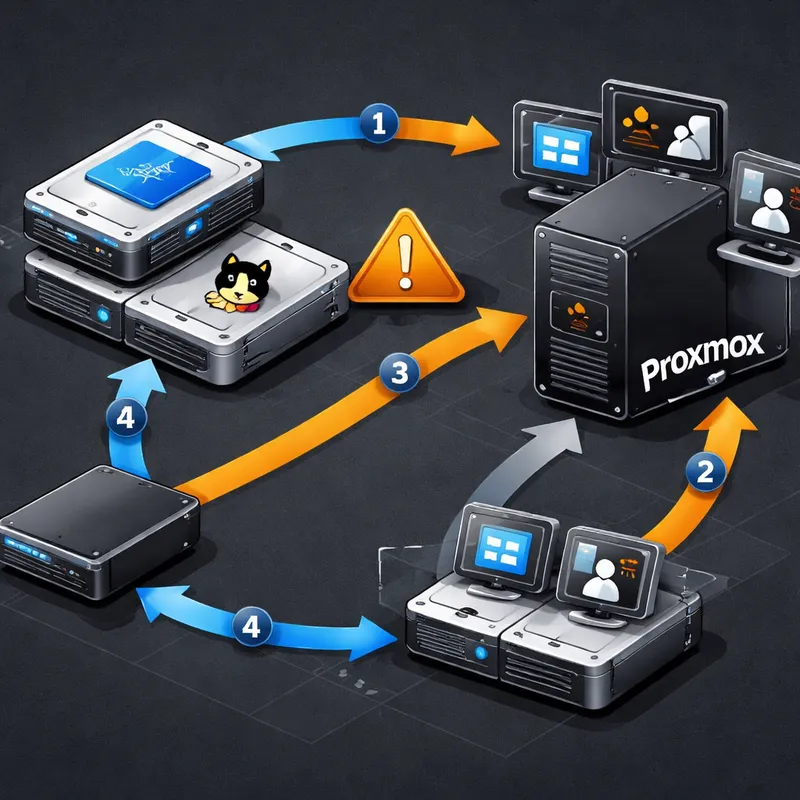
If you already have Windows and Linux in dual boot, here is the practical upgrade path I would use:
Back up everything
- Make a full image backup of Windows to another disk or NAS
- Back up your Linux data separately
Decide whether Windows must stay bare metal
- Keep it bare metal if you rely on anti-cheat games or license restrictions
- Move it to a VM if your use is development, office, testing, or general apps
Use a dedicated disk for Proxmox
- This lowers risk a lot
- It also makes rollback much easier
Install Proxmox cleanly
- Do not experiment on your only copy of important data
Create your Linux environment
- Containers for services
- VMs for full Linux desktops or labs
Create or migrate Windows
- Fresh VM install if you want a clean start
- Backup-and-restore approach if you need your old Windows setup
Test before deleting your old layout
- Make sure Windows activation, apps, storage, and network all behave properly
This approach is slower on day one, but much less painful in month three.
Performance tips for a better Windows VM on Proxmox
If you choose the VM route, do these first:
- Set CPU type to host
- Put the VM on fast SSD or NVMe storage
- Give Windows enough RAM, but do not starve the host
- Use VirtIO drivers where appropriate
- Use SPICE or your preferred remote display when passthrough is not needed
- Use GPU passthrough if you need stronger graphics performance
For many people, the difference between a sluggish Windows VM and a useful one is just sane resource allocation.

So, should you stop dual booting?
Usually, yes.
If your real goal is to use Windows and Linux side by side, dual boot is the old answer. Proxmox is the modern one, especially if you want snapshots, backups, labs, and fewer reboots.
But I would not pretend it is perfect for everyone. Keep bare-metal Windows if:
- your games depend on strict anti-cheat
- your Windows license does not allow your VM plan
- your hardware is too limited for a comfortable VM
- you only have one GPU and do not want the passthrough work
In every other case, Proxmox turns one machine into a far more flexible setup than classic dual booting.
FAQ
How to run Windows and Linux side by side?
The easiest modern way is to install Proxmox on the host, then run Windows as a VM and Linux as containers or VMs. If you need both on bare metal, use two separate drives and pick the boot disk from BIOS or UEFI.
How to stop Windows dual-boot?
First, back up both systems. Then decide which OS you want to keep as your main environment. If you are moving to Proxmox, install Proxmox on a dedicated disk, create your Linux and Windows environments there, confirm everything works, and only then remove the old dual-boot partitions. Do not delete partitions until you have tested backups and boot options.
Is it possible to dual-boot Windows and Proxmox?
Yes, but Proxmox is not really designed for dual-boot, and the easiest practical method is usually one disk for Windows and one disk for Proxmox, then selecting the boot drive during startup. Before you do anything, make a full bare-metal backup of your Windows install to a separate disk or NAS and create recovery media.
How to fix Windows and Linux showing different times when dual booting?
This happens because Windows and Linux may handle the hardware clock differently. The usual fix is to make Windows use UTC, or make Linux use local time. Most people choose the UTC fix on Windows because it is cleaner for Linux-based systems. If you move away from dual boot and run Windows as a VM on Proxmox, this problem often disappears.
Final thoughts
If you came here looking for a clean "install Proxmox on Windows 11" shortcut, the honest answer is that Proxmox works best when you treat it as the host, not as an add-on to a normal desktop install. Once you accept that, the whole design gets easier.
For me, the sweet spot is clear: Proxmox on dedicated hardware, Linux as the base of daily work, and Windows as a VM when I need it. Fewer reboots. Better recovery. More freedom.
And if gaming or licensing keeps you on bare-metal Windows, that is fine too. Just use two drives and make it boring. Boring setups break less.

