Microsoft launches AI Agents for Windows 11 taskbar and Search: what matters
Microsoft is finally bringing AI agents to Taskbar and Search in Windows 11, and this looks different from the AI add-ons people have complained about before. Instead of forcing another always-on button into your desktop, Microsoft is adding support for agents that can plug into the Windows 11 taskbar and search experience when you actually use compatible AI apps. In short, Microsoft is integrating a variety of AI agents directly into the Windows 11 taskbar, but the big catch is that these features appear to be optional and tied to supported apps, subscriptions, and developer integrations.
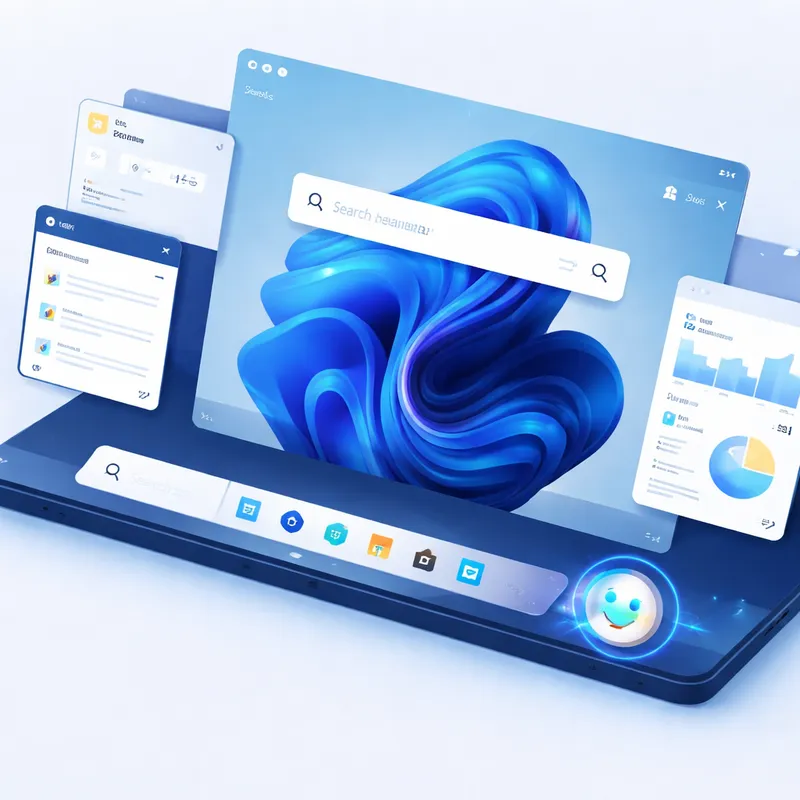
If you have followed the Windows AI debate, this update is notable for one reason: it is less about random AI clutter and more about giving apps a native way to work with Windows. That means agents can show progress in the taskbar, run multi-step workflows, and report results back to you without feeling bolted on.
What Microsoft is actually adding to Windows 11
Based on recent reporting and Release Preview builds, Microsoft is preparing a broader public rollout of taskbar agent support in Windows 11 in 2026. The feature has shown up in Release Preview builds 26100.8313 and 26200.8313, which suggests Microsoft is moving beyond concept stage.
Here is the simple version of what is changing:
- Windows 11 is getting support for AI agents in the taskbar
- Some of this also connects to Search through an Ask Copilot style experience
- Developers get APIs to integrate AI more deeply into the Windows UX
- The feature is described as optional, not something every user will be forced to run
- Early examples center on Microsoft 365 Copilot and its Researcher agent
- Microsoft says third-party developers will also be able to build their own agents
That last part matters most. This is not just a Microsoft-only feature. Microsoft wants Windows 11 AI integration to become part of the platform so outside developers can build on it too.
How Windows 11 taskbar AI agents are expected to work
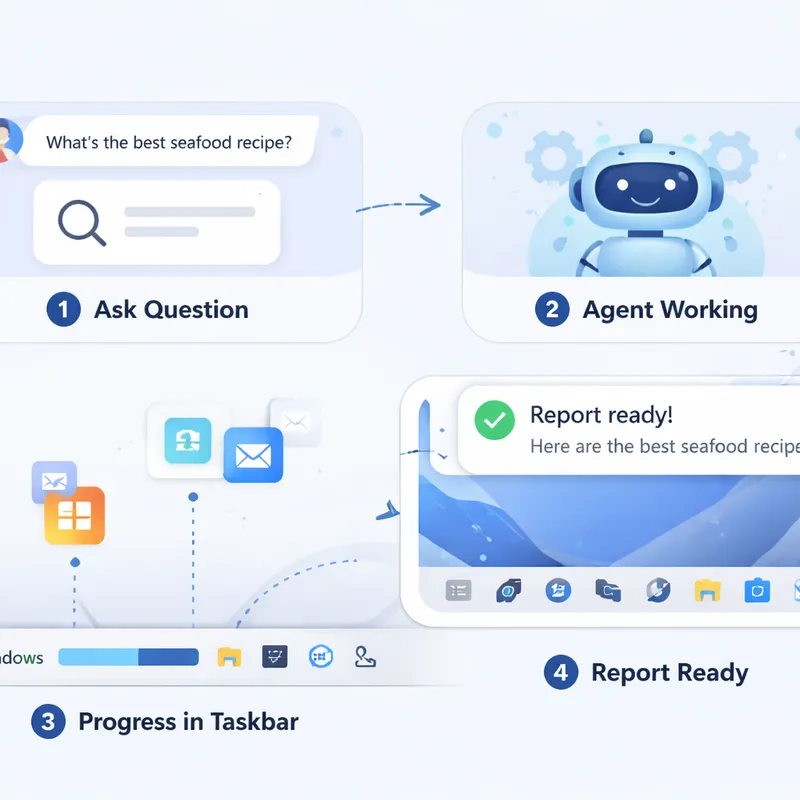
The idea behind these agents is that they do more than answer a question. They can take action, work across several steps, and then update you through the taskbar.
For example, Microsoft 365 Researcher is presented as an early agent that can:
- take a research request
- ask for clarification if needed
- work in the background
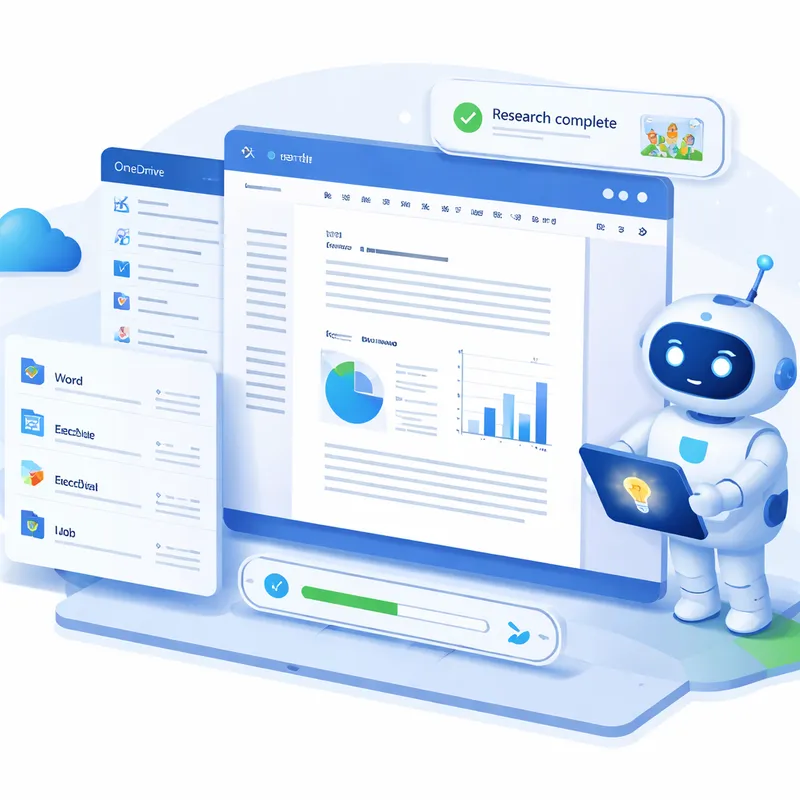
- pull from your Microsoft 365 or OneDrive content, where supported
- generate a report
- notify you when the result is ready
Instead of keeping one big app window open, you may be able to hover over the Microsoft 365 Copilot icon on the taskbar to watch progress or control the workflow. That is a more practical use of AI than dropping Copilot into every single app.
Reports also suggest these agents may be able to:
- summarize what is on screen
- extract data
- automate routine tasks
- help with workflow steps across multiple apps
This is why some sources are calling them “real” AI agents. They are meant to act, not just chat.
What changes in Search and Ask Copilot
The search side may be just as important as the taskbar update. Microsoft is reportedly working on an Ask Copilot experience that lets you use @ to call available agents on your PC.
Think of it like tagging the right helper for the right job.
You might search, type @, then pick an agent such as Researcher if it is installed and available. The goal is to make Microsoft windows search copilot more useful by turning search into an entry point for task-based AI, not just web answers.
This system is reportedly tied to Model Context Protocol (MCP), which is meant to help AI models and agents connect with apps, files, and parts of the operating system more cleanly.
For developers, shell integration is expected to rely on APIs such as Windows.UI.Shell.Tasks.
Why Microsoft is doing this now
Microsoft has a Windows problem and a developer problem.
Over the last year, AI app momentum has looked stronger on the Mac side in some circles, while Windows AI features have triggered backlash almost every time they seemed intrusive. So Microsoft appears to be trying a different route.
Instead of putting Copilot everywhere, it is making Windows more attractive for developers who want to build AI experiences that feel native.
That strategy has a few clear goals:
- keep Windows relevant as AI software grows fast
- reduce friction for developers building agent-based tools
- avoid stuffing AI into apps where users do not want it
- focus on useful workflows instead of pure branding
This also explains why Microsoft has reportedly backed away from pushing Copilot deeper into apps like Notepad, Snipping Tool, Photos, and Widgets. The message now seems to be simple: less forced Copilot branding, more targeted AI features where they can actually help.
Will this slow down your PC or run all the time?
Probably not for most people, at least based on how Microsoft and related reporting describe the feature.
A key point repeated across the coverage is this: these agent features are not on by default in the broad sense people fear, and you generally will not run into them unless you are using supported AI tools on Windows.
That is important because a lot of the public criticism has framed this as another useless AI layer eating system resources. The more accurate reading is that Microsoft is putting in developer-facing support and optional user-facing hooks for AI apps.
Of course, real-world impact still depends on the app you use. A lightweight taskbar indicator is one thing. A heavy enterprise AI app doing large research jobs is another. So the Windows feature itself may not be the main performance issue. The app and model behind it may matter more.
Who will actually be able to use it first?
At launch, access looks limited.
The clearest first example is Microsoft 365 Researcher, which sits inside Microsoft 365 Copilot. That means:
- you may need the Microsoft 365 app installed
- you may need Microsoft 365 Copilot access
- you may need a qualifying Microsoft 365 subscription
If you have removed Copilot or Microsoft AI apps from your PC, you likely will not see these features in practice.
So while the headlines make it sound like all Windows 11 users are suddenly getting agentic AI, the first phase looks narrower. In the short term, this is more of a platform change than a mass consumer feature.
What third-party developers can do next
This is where the update becomes more interesting.
Microsoft says third-party agents should be supported too. If developers adopt the APIs and MCP-based connections, Windows 11 could become a place where specialized agents handle real jobs directly from the desktop.
A few realistic examples:
- a project management agent that collects updates from email, Teams, and files
- a finance agent that pulls invoice data and prepares a draft summary
- a support agent that reads a ticket, checks a knowledge base, and prepares a reply
- a writing assistant that works more like a Windows 11 universal writing assistant across apps instead of living inside one app only
That is the long-term bet. Microsoft does not just want Copilot in Windows. It wants Windows AI agents from many developers to plug into the OS in a standard way.
What to expect next in 2026
Here is the most likely next wave based on the current reports:
1. Public rollout from Release Preview builds
The feature is already referenced in Release Preview, so broader testing and staged rollout are the next logical steps.
2. Microsoft 365 Researcher will be the early showcase
Microsoft usually launches platform ideas with its own products first. Expect Researcher to be the demo case Microsoft uses to explain why taskbar agents matter.
3. Search gets more agent routing
The Ask Copilot concept with @ tagging could turn Search into a launcher for specific agents, not just a place to find files and links.
4. Third-party agent support will decide whether this succeeds
If only Microsoft apps use it, the feature will feel limited. If Adobe, productivity developers, enterprise software makers, and browser-based AI tools plug in, this becomes much more useful.
5. Microsoft will keep saying it is optional
Expect Microsoft to keep stressing that this is not forced on everyone. Given the Microsoft agentic os backlash around earlier AI moves, the company knows users are watching closely.
6. More AI, but less obvious Copilot branding
This may be the biggest theme. Microsoft seems to be shifting from “put Copilot everywhere” to “put useful AI in the right places.” You may end up with more AI features in Windows 11, but fewer noisy entry points.
Is this a good move for Windows 11 users?
Honestly, it depends on how it is implemented.
If Microsoft keeps the feature optional and lets it stay tied to apps you choose, this is a much smarter direction than dumping AI into core apps with no clear value. A taskbar status surface for long-running AI work actually makes sense. It is similar to how you already watch downloads, sync, or background activity.
If Microsoft gets too aggressive, though, the backlash will come right back.
The balance is simple:
- useful when it saves you time
- annoying when it interrupts your flow
- welcome when you choose it
- frustrating when you cannot turn it off
That is why the ability to control or avoid these features matters as much as the AI itself.
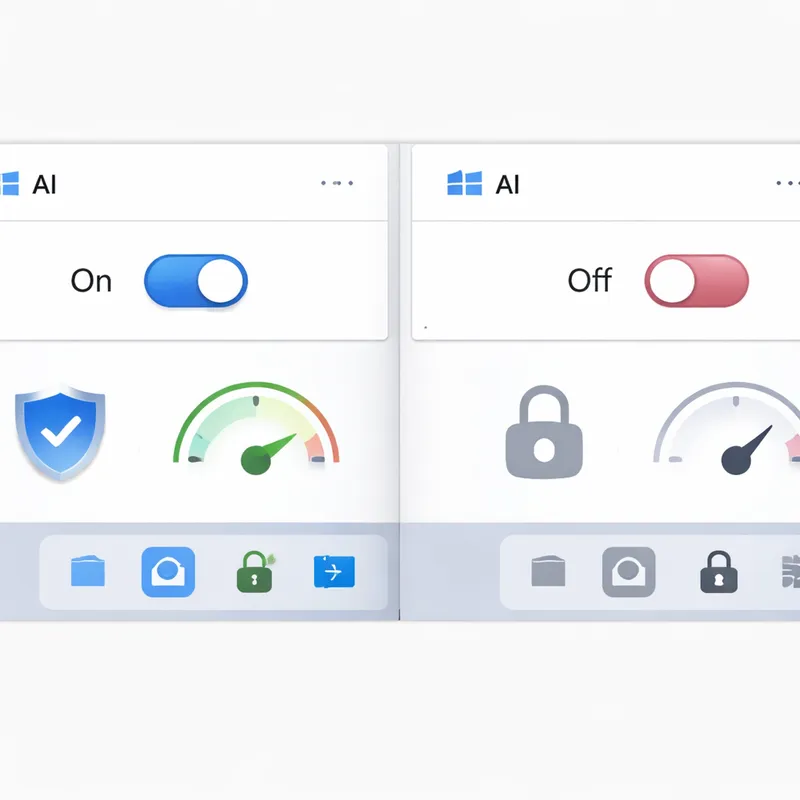
Can you disable AI in Windows 11 if you do not want this?
For now, the reports suggest many of these features are tied to installed apps and optional experiences, which means your easiest control is often not using those apps in the first place.
If you are trying to Disable AI in Windows 11, practical options may include:
- removing or not installing Copilot-related apps
- not subscribing to Microsoft 365 Copilot features
- turning off app-level AI experiences where settings are available
- avoiding preview features until Microsoft provides clearer controls
As always with Windows 11 experimental agentic features, exact controls can change by build, app, and region. So this is one area to watch once the rollout reaches more PCs.
The bigger picture: Windows is becoming an AI-ready platform
The most important takeaway is not that your taskbar is turning into a chatbot. It is that Microsoft wants Windows 11 to become an operating system where AI apps can plug in naturally.
That is a bigger shift than it sounds.
A good version of this future gives you:
- better automation across apps
- clearer progress updates for long AI tasks
- tighter connection between files, search, and assistants
- less app switching
A bad version gives you:
- more clutter
- more confusion
- more subscriptions
- more features you never asked for
Right now, Microsoft is promising the good version. The real test will be whether developers and users agree.
FAQ
What are AI agents in Windows 11?
AI agents in Windows 11 are tools that can do more than answer prompts. They can handle multi-step tasks, work across apps, and show progress or results through places like the taskbar and Search.
Are Windows 11 taskbar AI agents available now?
They have appeared in recent Release Preview builds, which suggests rollout is getting closer. Broader public availability may still happen in stages.
Will AI agents be forced on every Windows 11 user?
Current reporting says no. Microsoft is describing the experience as optional, and many features depend on supported apps such as Microsoft 365 Copilot.
What is Microsoft 365 Researcher?
Microsoft 365 Researcher is an early example of a Windows 11 taskbar agent. It can run research workflows, generate reports, and update you through the taskbar when the work is done.
Do I need a subscription to use Windows 11 AI agents?
Some of the first examples appear to require a Microsoft 365 subscription and Microsoft 365 Copilot access. Third-party agents may have their own requirements.
How will AI agents connect to Windows Search?
Microsoft is reportedly working on an Ask Copilot search experience where you can use @ to call available agents on your PC. That could make Search a starting point for agent-driven tasks.
Can third-party developers build AI agents for Windows 11?
Yes, that is one of the main goals. Microsoft is providing APIs and related platform support so developers can integrate agent experiences into Windows more natively.
Should you be worried about performance?
For most users, the Windows platform support itself is unlikely to be the main issue. Performance will probably depend more on which AI app you install and how heavy its tasks are.
Is Microsoft replacing Copilot with agents?
Not exactly. Microsoft seems to be reducing some Copilot entry points while still expanding AI in other forms. Taskbar and Search agents are part of that shift.
What should you expect next?
Expect a cautious rollout, Microsoft 365 Researcher as an early showcase, more developer support for third-party agents, and stronger links between Search, taskbar status, and AI workflows.

