Google’s new Chrome workflow feature, explained
Google reusable Gemini prompts in Chrome are here, and they do exactly what many people wanted. Google is launching a new Chrome workflow feature that lets you save and reuse your most helpful AI prompts while browsing with a single click. In plain English, Google is adding “Skills” to Chrome. Google’s Gemini in Chrome can now save and reuse your favorite AI prompts, so you do not have to type the same instructions again and again. If you already use Gemini to summarize pages, compare products, or pull details from long documents, this update makes those repeat tasks much faster.
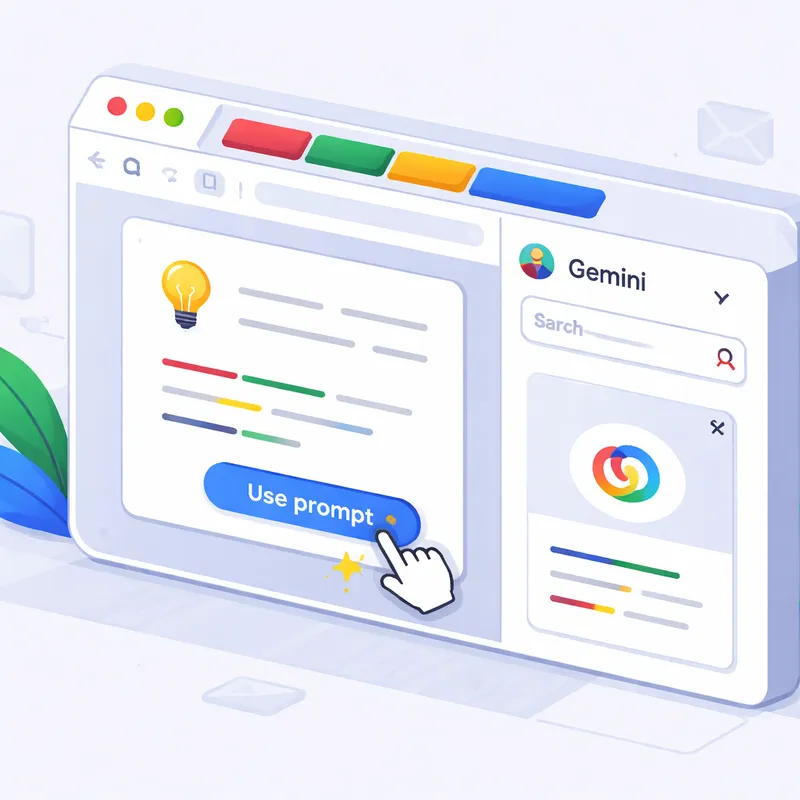
The big idea is simple. Skills allow you to save your favorite Gemini in Chrome prompts and run them later on the page you are viewing. Instead of copying a prompt from Notes or retyping it from memory, you open Gemini in Chrome, type a forward slash, or click the plus button, then pick the saved prompt.
This is not a brand-new AI power. It is a speed upgrade. And honestly, that may be why it matters.
What are Skills in Chrome?
Google Chrome's new Gemini-powered Skills feature is basically a reusable prompt system built into Gemini in Chrome on desktop. You can take a prompt you already use often, save it as a Skill, and run it again across other pages and tabs.
Think of it like this:
- A normal prompt is one-off
- A Skill is that same prompt, saved for later use
- You can trigger it in a click instead of rewriting it each time
Google has now solved that problem by launching a new feature called Skills in Chrome. Before this, if you wanted Gemini to do the same task on different pages, you had to paste the same text over and over. A recipe prompt today. The same recipe prompt tomorrow. Same instructions, same friction.
Now you can save the prompt once and reuse it.
How Skills work in Gemini in Chrome
Here is the basic workflow on desktop Chrome:
- Open Gemini in Chrome.
- Run a prompt you like.
- Save that prompt from your chat history as a Skill.
- Later, while browsing, type "/" in Gemini or click the "+" button.
- Choose your saved Skill.
- Gemini runs it on the current page, or on other tabs you select.
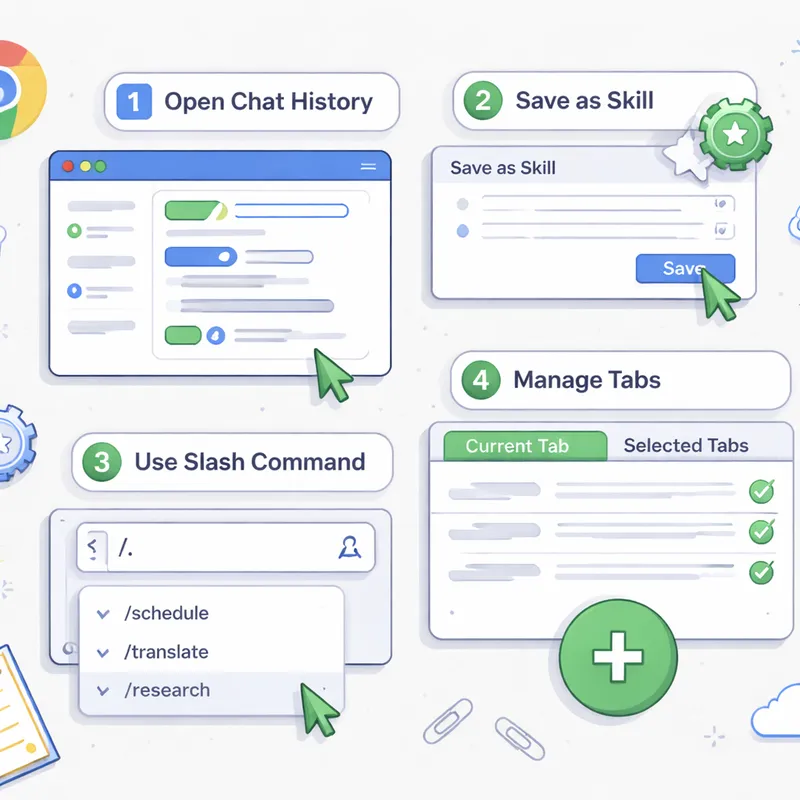
A few useful details stand out:
- Saved Skills sync across desktop Chrome devices if you are signed in to your Google account
- You can edit Skills later
- You can create new Skills at any time
- If a Skill uses more than one source, Gemini can work with multiple tabs
- You can manage saved Skills through Gemini in Chrome, including from the compass icon after typing "/"
That means if you build a prompt on your work laptop, it can be there later on your home desktop too, as long as both are signed into Chrome.
Why this matters: faster answers, less typing
This feature is useful because it cuts small bits of friction that add up fast.
Maybe you use Gemini to:
- summarize long articles before meetings
- compare product specs from shopping tabs
- scan a document for action items
- estimate nutrition from recipes
- rewrite web copy in a certain format
Each of those tasks often starts with the same prompt structure. Skills turn that repeated setup into a reusable shortcut.
That makes Gemini in Chrome feel more practical in day-to-day browsing. Not more magical, just easier. I think that matters more than flashy demos. Most people do not need a sci-fi agent. They need fewer repetitive steps.
Real examples Google shared
Google says early testers used Skills for common browsing tasks like these:
- Calculating protein macros for recipes
- Creating side-by-side comparison tables from multiple tabs
- Summarizing long documents or websites
These examples work because they are repeatable. The page changes, but your goal stays the same.
For example, you could save a prompt like:
Calculate the protein, carbs, and fat per serving for this recipe. If the serving size is unclear, estimate it and show your math.
Then every time you open a recipe page, you run that same Skill.
Or maybe you shop across five laptop tabs. A saved comparison prompt could tell Gemini to pull processor, RAM, storage, display size, battery claims, and price into one table.
That is a lot nicer than typing it every single time.
The new Skills Library gives you ready-made prompts
Google is also rolling out a Skills Library with pre-built prompts you can add and edit.
This matters for two reasons:
- You do not have to start from scratch
- You can use a prebuilt Skill as a template, then tweak it for your own needs
Examples mentioned in coverage and Google’s own notes include Skills that can:
- list ingredients in a skincare product
- help choose a gift based on interests and budget
- turn webpage content into a movie trailer-style dramatization
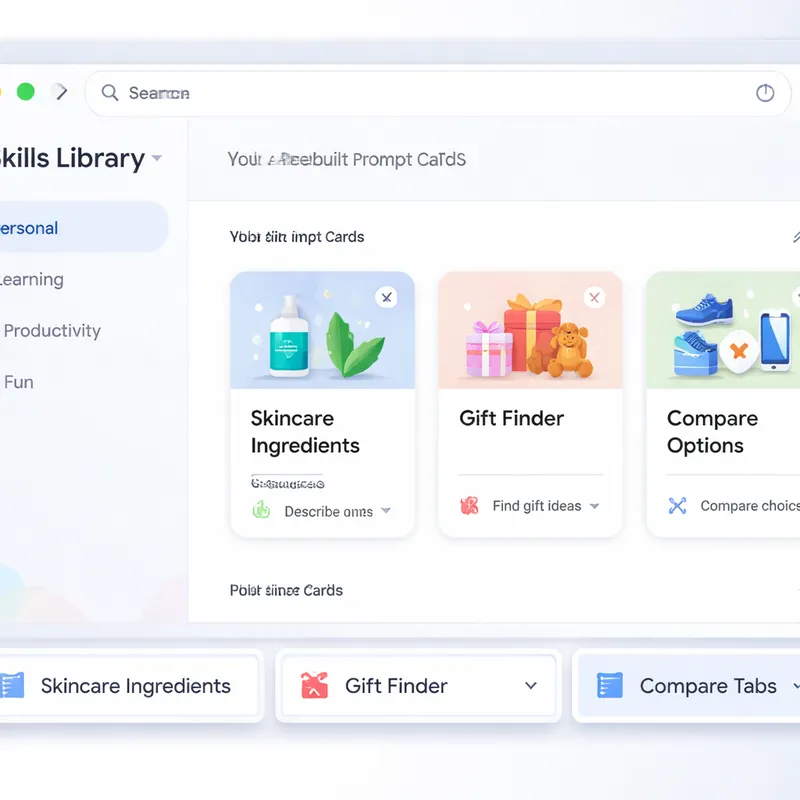
That last one is a little playful, but the broader point is solid. Google wants Skills to be useful for practical work and casual browsing.
If you are new to prompt writing, the library could be the easiest way in. Pick something close to your task, save it, edit a line or two, and you are set.
Security, privacy, and confirmations
Google says Skills follow the same safeguards as regular Gemini in Chrome prompts.
That means a saved prompt does not bypass the normal rules just because you stored it as a Skill. For more sensitive actions, Gemini still asks for confirmation.
Examples include:
- adding an event to your calendar
- sending an email or message
Google also points to layered protections, automated red-teaming, and Chrome’s existing security foundation.
The practical takeaway is simple: Skills reduce typing, not safety checks.
Model choice still matters
Skills do not change how Gemini models behave.
If you use a faster model, your answer may come back quicker, but it may also be more error-prone. If you choose a Pro model, results may be better, but the response can take longer.
So even with a perfect reusable prompt, the output quality still depends on:
- the page content
- the tabs you include
- the model you pick
- how clearly the prompt is written
A saved prompt is not a guarantee of a perfect answer. It is a shortcut to a familiar workflow.
Who gets access and when?
Google is rolling out Skills to Gemini in Chrome on desktop starting April 14, 2026.
Availability details so far:
- Platforms: Mac, Windows, and ChromeOS
- Location requirement: Chrome language must be set to English-US
- Plan requirement: no paid AI subscription is required for the core feature
- Sync: saved Skills are available on signed-in Chrome desktop devices
This is bundled into Gemini for Chrome, so if you do not want it, you can simply ignore the Gemini sidebar and move on with your day.
How to use Skills well
If you want better results, keep your saved prompts specific.
A weak Skill might say:
Summarize this.
A stronger Skill might say:
Summarize this page in 5 bullet points, then list 3 key numbers, and end with one risk or limitation.
Here are a few smart ways to build reusable prompts:
- Tell Gemini what format you want
- Set a clear output length
- Mention whether to use the current tab or multiple tabs
- Ask for a table when comparing products
- Ask for citations or quoted snippets when accuracy matters
You can also create a small set of personal Skills for your regular habits, like:
- recipe nutrition checker
- article summary tool
- product comparison table
- document key points scanner
- page rewrite for email or notes
That is probably where this feature will shine most for everyday users.
FAQ
What are Google Skills in Chrome?
Skills in Chrome are reusable Gemini prompts you can save and run later while browsing. They are built into Gemini in Chrome on desktop and help you repeat common AI tasks without retyping the same instructions.
How do I open Skills in Gemini in Chrome?
Open Gemini in Chrome, then type a forward slash "/" or click the plus "+" button. From there, you can choose a saved Skill or access your prompt options.
Can I save prompts from chat history?
Yes. Google says you can save prompts directly from Gemini in Chrome chat history and turn them into reusable Skills.
Do Skills work across devices?
Yes, on desktop Chrome. If you are signed into your Google account, saved Skills can appear on your other signed-in desktop Chrome devices.
Can Skills use more than one tab?
Yes. Skills can run on the current page and, in some cases, use additional selected tabs. If a workflow needs multiple sources, Gemini can pull from more than one tab.
Are Skills available for free?
Yes. Google says no paid AI plan is required for the main Skills feature in Chrome.
What languages are supported right now?
At rollout, the feature is available for Chrome users with the browser language set to English-US.
Are Skills safe to use?
Google says Skills use the same safeguards as normal Gemini in Chrome prompts. For sensitive actions like sending an email or adding a calendar event, Gemini still asks for your confirmation.
What is the difference between a Skill and a normal prompt?
A normal prompt is something you type once. A Skill is that prompt saved for reuse, so you can trigger it again with less effort.
Does using a Skill improve answer quality?
Not by itself. Skills save time, but the quality still depends on the Gemini model you use, the page content, and how clear the prompt is.
Final thoughts
Google launches Skills in Chrome desktop at a good time. AI tools are useful, but repeated typing wears people out fast. This update does not reinvent Gemini. It removes one annoying step, and that can be enough to make the feature stick.
If you already use Gemini in Chrome, Skills will likely feel natural. If you do not, the prebuilt Skills Library may be the easiest reason to try it. Save a few prompts you use often, and your browser starts doing more of the setup work for you.
That is the real value here: faster answers, less typing, and fewer repetitive clicks.

