BlackRAW Visor lets you open .BRAW files directly from USB on iPhone and iPad
If you want to open .braw files directly from external USB-C / Thunderbolt SSDs on iOS, BlackRAW Visor is the app getting the most attention right now in 2026. It is built to open Blackmagic braw files directly from USB storage on your iPhone or iPad, without importing, copying, or transcoding first. That matters if you shoot on Blackmagic cameras and want a fast way to review footage on set. Learn how to open Blackmagic RAW files, scrub clips, preview LUTs, and hand off edits, all from a mobile device.
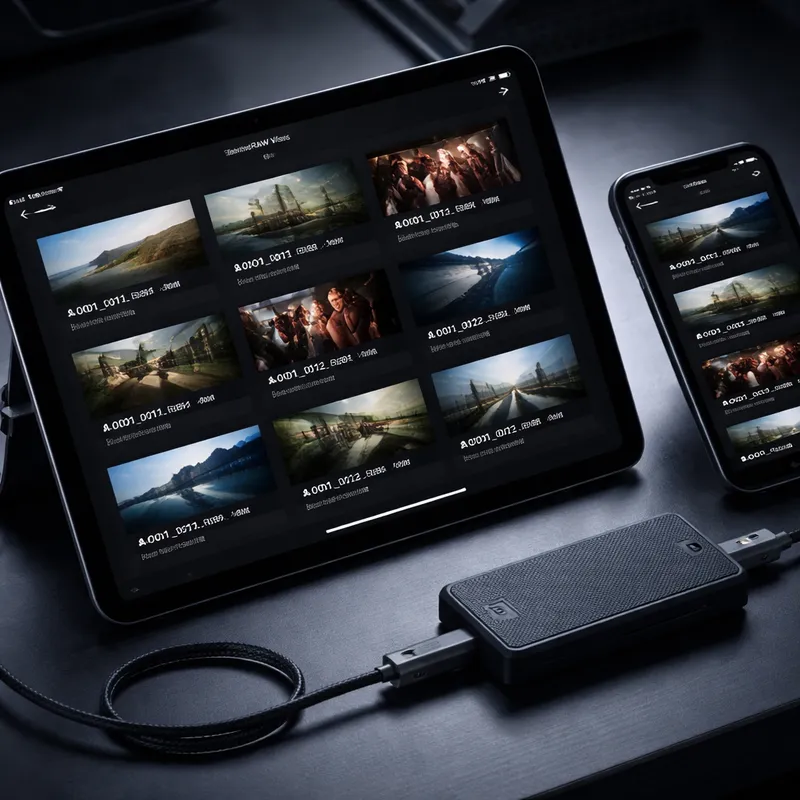
BlackRAW Visor is listed as an iPhone and iPad app and is positioned as a BRAW viewer, LUT, and DIT tool. Its biggest promise is simple: plug in an external SSD, browse your folders, and read the files in place. No laptop needed.
What BlackRAW Visor actually does
Based on the App Store listing and launch coverage, BlackRAW Visor claims to be the first iOS app that can open .braw files natively straight from external USB-C and Thunderbolt SSDs. The app uses the official Blackmagic RAW SDK and Metal GPU rendering for playback.
Here are the key things it offers:
- Open Blackmagic RAW clips directly from external storage
- Browse folders with a thumbnail grid
- Read files in place with a zero-copy workflow
- Use frame-accurate scrubbing with filmstrip thumbnails
- Play audio where supported
- Switch decode quality between Full, Half, Quarter, and Eighth
- Apply RAW controls like white balance, ISO, exposure, gamma, gamut, and Gen 4/5 color science
- Preview 3D LUTs live using .cube files
- Export sidecars, LUTs, proxies, trims, and deliverables for editing apps
If you have ever searched for things like Blackmagic raw files download, BRAW recorder workflows, or Blackmagic RAW video support requires a plugin, this app is interesting because it focuses on direct viewing and grading on iOS instead of desktop playback.
How to open .BRAW files directly from USB on iPhone/iPad
This is the basic workflow described by the app listing and reporting:
- Connect your external USB-C or Thunderbolt SSD to your iPhone or iPad.
- Open BlackRAW Visor.
- Let the app detect the external media.
- Browse folders in the thumbnail grid.
- Tap a .braw clip to open and play it.
- Scrub frame by frame or use filmstrip previews for quick review.
- Adjust RAW settings or load a LUT if you want to preview a look.
- Export sidecars, a LUT, proxy, trim, MP4, or ProRes if your workflow needs it.
The important detail here is that files are read in place. The app says it uses security-scoped bookmarks so it can keep persistent access to files on external storage. In plain English, that means your iPhone or iPad can keep working with the drive without forcing you to duplicate media onto the device.
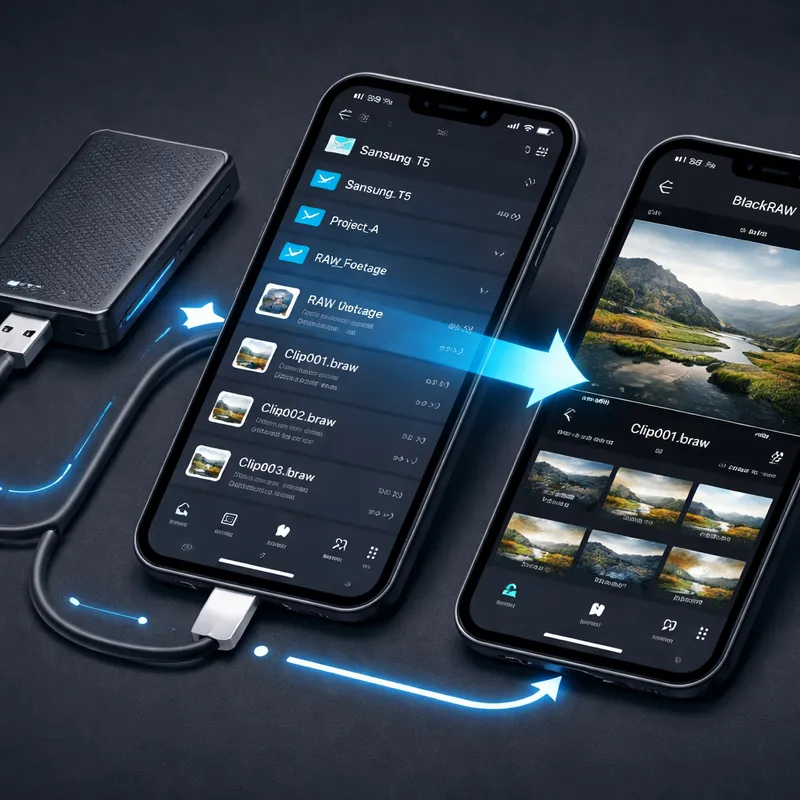
That zero-copy approach is the real hook. If you work with large 4K, 6K, or 12K footage, copying files to a phone or tablet is slow and eats storage fast. Reading directly from the SSD makes more sense.
Why this matters for DITs, cinematographers, and editors
BlackRAW Visor is clearly aimed at people shooting Blackmagic cameras like the BMPCC 4K, BMPCC 6K, URSA Mini, URSA Cine, and Pyxis. If that is your setup, you probably care less about casual playback and more about on-set decisions.
A few use cases stand out:
- Rush review on set: You can check takes right after a card dump or SSD handoff.
- Look development: Load a .cube LUT and preview the look while footage plays.
- Exposure checks: False color, histogram, zebra stripes, and focus peaking help you catch issues fast.
- Editor handoff: Export EDL, FCPXML, markers, sidecars, or proxies for the next step.
This also fills a gap. Blackmagic RAW Player itself is available as a Mac app, but that does not help if your goal is to review footage on iPhone or iPad while standing next to camera.
Playback and performance features to know
The app says it uses native BRAW decoding powered by the official SDK and Apple Metal. It also claims real-time playback for 4K, 6K, and even 12K footage, depending on device and decode settings.
Here are the playback-related features that matter most:
- Native BRAW decoding
- Metal-accelerated rendering
- Smooth playback at native frame rates
- Frame-accurate scrubbing
- Decode quality settings from Full to Eighth
- Intelligent thermal throttling to reduce quality if the device gets too hot
That last point is worth noting. Phones and tablets heat up. So the app auto-adjusting decode quality is a practical choice, not a weakness.
If you are used to desktop tools like BRAW Studio FREE, the Adobe BRAW plugin, BRAW thumbnails Mac utilities, or Blackmagic Media Encoder pipelines, this is a different kind of tool. It is about mobility and speed, not replacing your full edit suite.
RAW controls, LUT preview, and grading tools
This is where BlackRAW Visor starts to feel more serious than a simple viewer. The app includes RAW controls that line up with settings you would expect in DaVinci Resolve's Camera RAW area.
You can adjust:
- White balance with Kelvin and Tint
- ISO, exposure, and analog gain
- Contrast, saturation, and midpoint
- Highlights, shadows, black level, and white level
- Highlight recovery and gamut compression
- Gamma, gamut, and Blackmagic color science Gen 4/5
The app says these start from the clip's embedded defaults, which is what you want. You are not rebuilding the image from scratch every time.
For grading, it also includes:
- Lift, gamma, and gain wheels
- HSL controls across 8 hue ranges
- Interactive RGB curves
- Post-decode exposure, contrast, and saturation
- Vibrance, vignette, and temperature/tint shift
- Copy and paste grades between clips
- Export grade as a .cube LUT
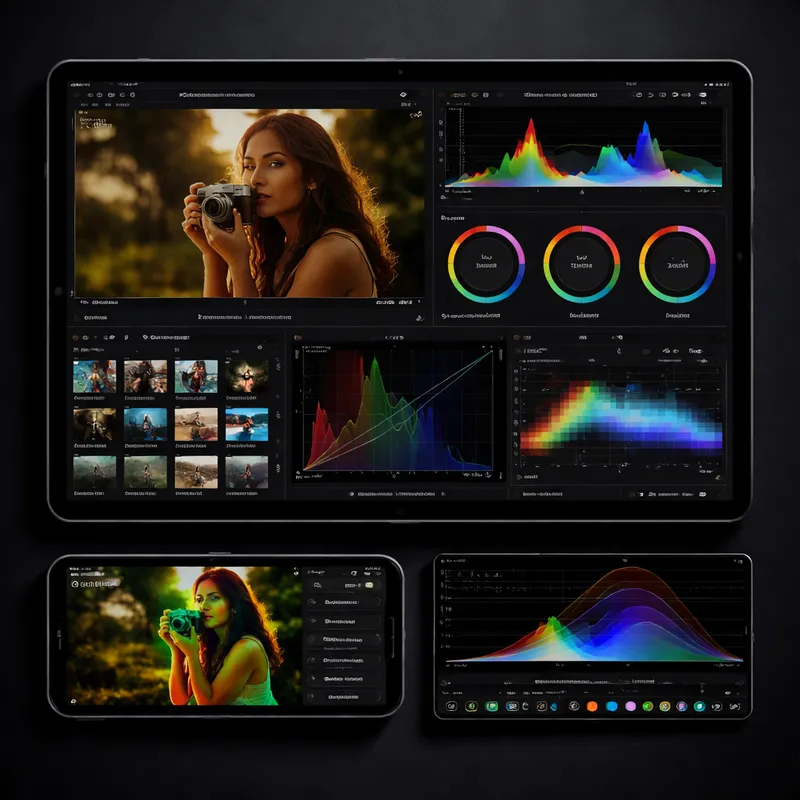
That LUT export angle matters if you are building looks on set. You can test a grade quickly, save it as a Blackmagic RAW conversion LUT style reference, and move into DaVinci Resolve later.
Monitoring tools for exposure and focus checks
A viewer is useful. A viewer with proper monitoring tools is much more useful.
BlackRAW Visor includes:
- False color exposure map
- Real-time luma histogram
- Focus peaking with adjustable threshold
- Zebra stripes from IRE 70 to 100
- Frame guides like 2.39:1 and 1.85:1
- Grid overlays such as Rule of Thirds and Golden Ratio
These are the tools you reach for when someone asks, "Did we clip that window?" or "Is focus really landing on the eyes?" On a small crew, having those checks on an iPad can save time.
Export options and handoff workflow
After review or grading, you can move footage or metadata into the next stage of production.
The listed export options include:
- MP4 HEVC at full resolution
- Apple ProRes HQ
- BRAW Trim using SDK-native passthrough for instant, lossless trimming
- Proxy generation in H.264 or H.265 at multiple resolutions
- Blackmagic native .sidecar export for DaVinci Resolve compatibility
- EDL, FCPXML, and markers exported as text
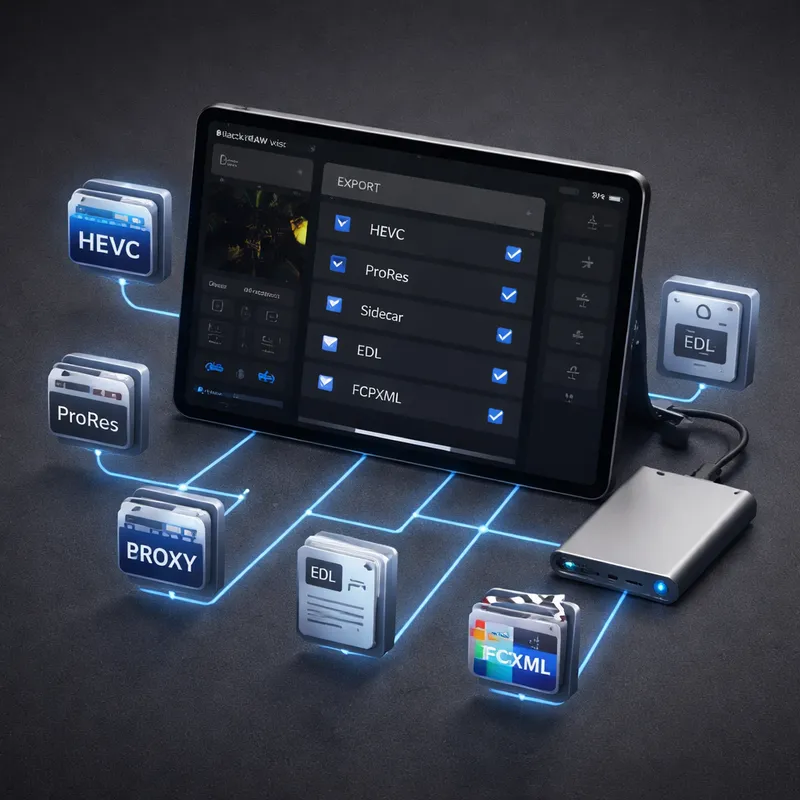
That makes BlackRAW Visor more than a playback app. It can fit into a real workflow where the DIT, editor, or colorist needs notes, trimmed selects, proxies, or sidecar-based grade metadata.
Pricing, availability, and a few limitations
As of 2026, BlackRAW Visor is available on the Apple App Store for iPhone and iPad. The listing shows these purchase options:
- Pro Monthly
- Pro Annual with a 7-day free trial
- Pro Lifetime
A few extra facts from the listing:
- It is not affiliated with Blackmagic Design Pty. Ltd.
- The developer states no data is collected
- It is listed for iPhone and iPad, and designed for iPad
- The age rating is 4+
One smart limitation to keep in mind: this app is centered on Blackmagic RAW. It is not a general answer for every camera codec. If your workflow depends on Adobe BRAW plugin support inside Premiere or on desktop-side tools, you will still use those later.
Should you use BlackRAW Visor?
If your job involves Blackmagic RAW and you want to review, monitor, or prep footage without a laptop, BlackRAW Visor looks genuinely useful. The biggest win is simple: you can open .braw files directly from external USB on iPhone or iPad and start working right away.
That said, I would think of it as a field tool first. It is great for review, quick grading, LUT previews, metadata handoff, and proxy prep. For finishing, you will still lean on your usual desktop tools.
Still, for a lot of shooters, that is enough to make it worth a look.
FAQ
How to access files on iPhone via USB?
To access files on iPhone via USB, connect a compatible USB-C drive or SSD to your iPhone, then use an app that supports external storage browsing. In the case of BlackRAW Visor, you plug in the USB-C or Thunderbolt SSD, open the app, and browse the folders directly inside the app. According to the app listing, the files are read in place and do not need to be copied to the device first.
Can BlackRAW Visor open .braw files without importing them?
Yes. The app is specifically described as opening .braw files directly from external SSDs with no import, no transcode, and no copy workflow.
Does BlackRAW Visor support LUT preview?
Yes. It supports loading .cube LUT files and previewing them live while the footage plays.
Can you export files for DaVinci Resolve?
Yes. The listed export options include native .sidecar files, .cube LUT export, markers, EDL, and FCPXML, which are meant to help with editor and Resolve handoff.
Is BlackRAW Visor the same as Blackmagic RAW Player?
No. BlackRAW Visor is an iPhone and iPad app focused on direct BRAW playback and grading from external storage. Blackmagic RAW Player is a separate app from Blackmagic Design and is listed as Mac-only on the referenced App Store page.

