AI apps are moving from the browser to your desktop
AI Apps Are Coming for Your PC, and this is not just another browser tab trend. The big change in 2026 is that you now have new AI apps to install on your computer, not just chat with online. That matters because an AI PC feels different after you install tools that can browse, search files, code, and act across apps. You can see it in products like OpenAI Codex and Gemini for Mac, while Windows 11 is packed with AI now and AI Features Rolling Out to All Windows 11 PCs keep expanding. Even AI is used in the Smart App Control story around security and app trust.
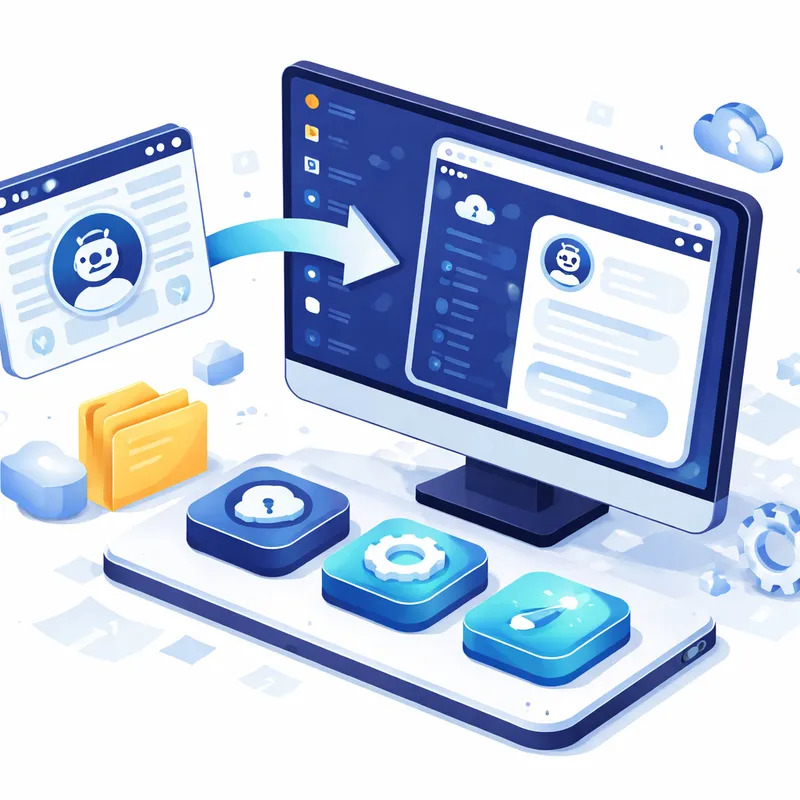
A year ago, most people used AI in a browser. Ask a question, copy the answer, paste it into your work, done. Now the software wants a seat on your machine. It wants a keyboard shortcut, startup access, file access, browser access, and sometimes permission to do things for you.
That is the real shift. AI changes how we think about the computer. Your PC is becoming a place where AI sits beside your normal tools, not outside them.
What changed: AI is becoming a PC app, not just a website
The clearest signal from recent coverage is simple: AI tools are turning into installable desktop software.
The Verge highlighted a couple of new AI apps to install on your computer, and that wording matters. It frames AI as part of your normal PC workflow. You install it. You pin it. You launch it with a shortcut. You use it with your files.
Two examples stand out:
- OpenAI Codex is described as an all-in-one AI superapp with a browser, coding tools, and a setting that can use your computer for you.
- Gemini for Mac is presented as the best way yet to interact with Gemini on desktop, with access to Google Drive and Google Photos.
That moves AI from “helpful answer box” to “software layer across your computer.”
If you are on Windows, you are seeing the same direction from Microsoft. A lot of users now feel that Windows Copilot has just been massively improved, or at least deeply embedded. At the same time, others feel Windows 11 is packed with AI now and want more control over what runs and when.
The new desktop AI experience: what it looks like in real life
Here is what changes when AI becomes a local app or a tightly integrated PC tool.
1. AI gets faster access to your work
Instead of copy-pasting text into a web page, the AI can work with:
- local files
- cloud storage like Google Drive
- photo libraries
- apps already open on your screen
- browser tabs and research
That is why Gemini for Mac feels more useful than a basic chatbot. It can plug into the things you already use.
2. AI starts living in shortcuts, menus, and startup items
This part is easy to miss until it gets annoying.
Gemini for Mac reportedly tied itself to a keyboard shortcut many people already use and also set itself as a login item by default. On Windows, Copilot and other AI features can appear in:
- startup apps
- context menus
- browser sidebars
- office tools
- webcam controls
- search and recall features
That saves time for some people. For others, it feels like software barging into the room.
3. AI goes from answering to acting
This is the biggest jump.
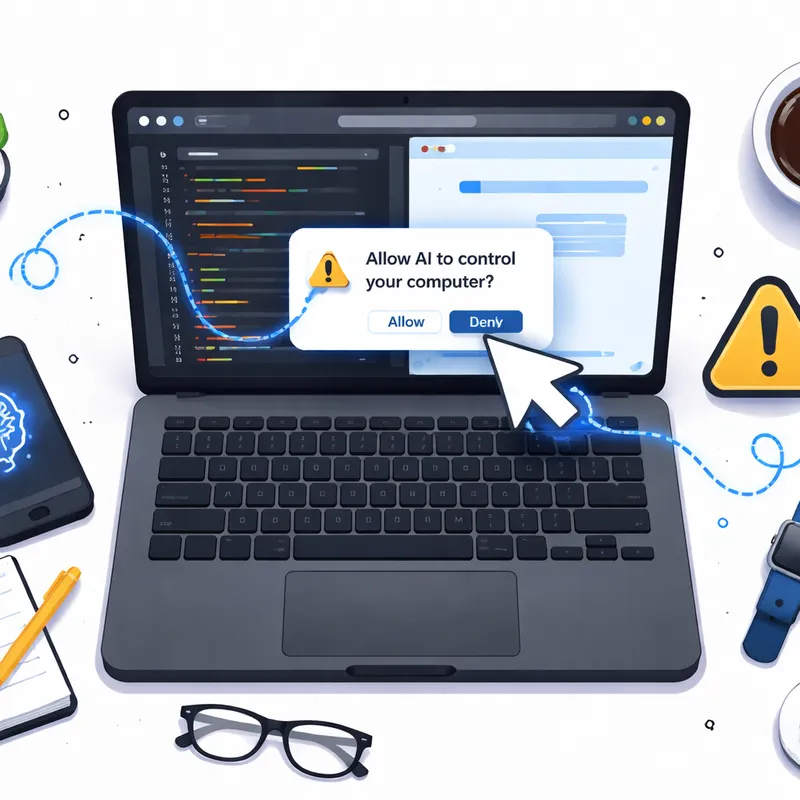
An AI that summarizes a document is one thing. An AI that can use your computer for you is another. That is why Codex deserves the caution The Verge attached to it: tread lightly.
Once an AI tool can click, browse, open files, or carry out tasks, the risk changes too. You have to think about permissions, privacy, and whether you trust the app to understand what you meant.
Why this is happening so fast in 2026
If it feels like everything is suddenly AI, there is a practical reason.
Better chips, better models, and tighter operating system support are arriving at the same time. Microsoft’s 2026 guidance around the AI PC makes that point clearly. The pitch is not just cloud AI. It is AI that runs on-device with help from a dedicated NPU, or Neural Processing Unit.
On paper, the benefits sound great:
- faster local AI tasks
- less internet lag
- better battery life on supported hardware
- more privacy because some processing stays on-device
- offline features like captions and search in some cases
This is where terms like Best AI PC 2026, Best AI laptop 2026, AI Mini PC, AI workstation, and Copilot Plus mini PC start showing up more often. Hardware makers want you to buy a machine that is ready for local AI features, not just web AI.
The point is not that every new AI feature is essential. The point is that the PC industry is now building for it.
What changes for Windows users specifically
If you use Windows, the AI wave is broader than one app.
Microsoft positions Windows 11 as an AI operating system with features like:
- Copilot in Windows
- Recall
- Live Captions with translation
- Windows Studio Effects
- AI editing in Photos
Some of these are useful. Live translation and webcam cleanup can genuinely help. Some are more controversial. Recall, for example, has raised privacy concerns because it is based on saving snapshots.
That split is important. Not every AI feature belongs in every workflow.
You may also notice that the phrase Windows 11 ai name often confuses people. In plain English, most users are really asking what Microsoft calls its built-in AI assistant. The answer is usually Copilot, though the actual experience can vary by device, app, and version.
And yes, people still search for Windows 11 AI download because they expect AI to be one single add-on. It is not that simple anymore. In Windows, AI can be a built-in feature, a bundled app, a Microsoft 365 integration, or a hardware-specific Copilot+ feature.
What changes for Mac users specifically
Mac users are seeing a different style of AI integration.
Gemini for Mac shows the desktop AI playbook clearly:
- assign a hotkey
- stay available from the desktop
- connect to your services
- stay running unless you stop it
That can feel smooth when it works. You pop it open, ask a question, find something in Drive, or pull from Photos. Done.
But the same convenience can feel invasive if the app grabs a shortcut you use every day or adds itself to startup without a clear opt-in.
My take is simple: desktop AI is most helpful when it behaves like a respectful utility, not a needy assistant.
The good news: some AI apps will genuinely save you time
Not every AI integration is hype. A few use cases are already practical.
You may benefit if you regularly:
- write drafts and need summaries or rewrites
- search across lots of files and notes
- edit images fast for work or school
- code and want help with boilerplate or debugging
- translate audio or video
- hop between documents, tabs, and cloud storage all day
This is where Free AI for PC tools and paid desktop apps both compete. Some people only need a basic assistant. Others want deeper automation tied to their files and apps.
The lesson is not “install everything.” It is “pick one or two tools that match your actual work.”
The risks you should take seriously before you install anything
This is where you should slow down.
AI apps that live on your PC can ask for broad access. That means they may touch:
- your files
- your screenshots
- your browser sessions
- your clipboard
- your camera or microphone
- your startup behavior
If a tool can act on your computer, check these before you trust it:
- What permissions does it need?
- Does it run at startup by default?
- Can you turn features off?
- Does it process data locally or in the cloud?
- Can you uninstall it cleanly?
PCWorld’s reporting makes one thing clear: on Windows, you can disable or remove a lot of AI features, but the controls are scattered. That means your best defense is not panic. It is a careful setup.
What to do next: a simple action plan for normal PC users
You do not need a full AI overhaul. Start small.
Step 1: Audit what is already on your computer
Check your:
- startup apps
- browser sidebar tools
- taskbar shortcuts
- Office or productivity app add-ons
- file explorer context menus
If something AI-related is running and you never asked for it, decide whether you want it there.
Step 2: Pick one AI app for one job
Do not install five assistants at once.
Choose one need:
- writing help
- coding help
- image cleanup
- search and organization
- translation
Then test one app against that need for a week.
Step 3: Limit permissions early
If an app wants startup access, file access, or broad automation rights, pause and ask why. Give the minimum access that still lets you test it.
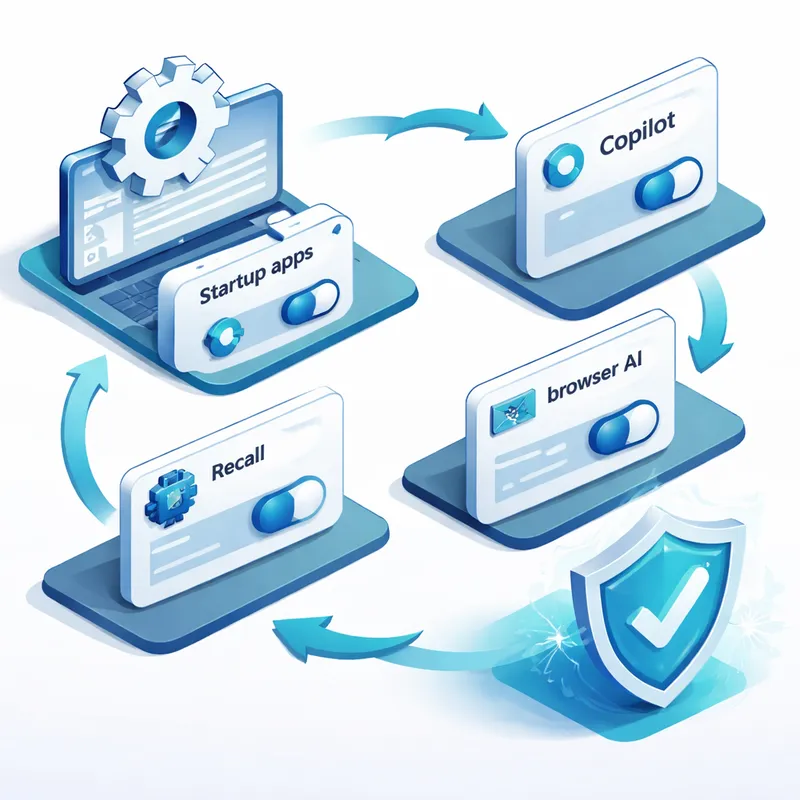
Step 4: Learn the off switches
If you use Windows 11, you can often reduce AI clutter by:
- disabling Copilot in startup apps
- uninstalling Copilot apps if you do not want them
- turning off Recall snapshots
- disabling Click to Do
- hiding browser AI features in Chrome or Edge
If you use a Mac, review login items and keyboard shortcuts after installing any AI assistant.
Step 5: Decide whether your next PC should be an AI PC
Not everyone needs one right now.
But if you are shopping in 2026, it is worth checking whether your next machine includes:
- a dedicated NPU
- 16GB RAM or more
- fast SSD storage
- current Windows 11 support
- strong privacy and sign-in security
If you rely on local AI features, then looking at the Best AI PC 2026 or Best AI laptop 2026 options makes sense. If not, a regular PC with selective software may still be enough.
Should you buy an AI PC right now?
Here is the honest answer: maybe, but only if the features match your work.
An AI workstation makes sense if you do creative work, coding, media, or research that benefits from local AI speed. An AI Mini PC can make sense if you want a compact desktop for office tasks, light creation, or experimentation. A Copilot Plus mini PC may appeal if you want the newest Windows AI features in a smaller form.
But if your day is mostly email, web browsing, streaming, and documents, do not let the label alone push you into a purchase.
The smarter question is not “Is this an AI PC?”
It is “Will this machine make my real daily tasks easier without adding more clutter than value?”
A quick note for developers and builders
If you build software, there is another shift happening.
AI can now help create apps faster, but maintaining them is still messy. User reports from AI app builders show a familiar pattern: the first version is easy, later changes are where things break.
That matters for desktop AI too. The future is not just more AI apps. It is better-structured AI apps that can evolve without turning your workflow into a pile of fragile automations.
In other words, speed is nice. Reliability is better.

The bottom line
AI apps are coming for your PC, but that does not have to be bad news.
The real change is that AI is becoming part of the computer itself. It is moving into app launchers, file systems, coding tools, cloud storage, and operating system features. Some of that will save you time. Some of it will annoy you. A small part of it may overreach if you are not paying attention.
So do the simple thing.
Test carefully. Keep control of permissions. Turn off what you do not need. Buy new AI-focused hardware only when your work can actually use it.
That is the best way to get the upside without handing your whole desktop over to an assistant that has not earned your trust yet.
FAQ
Can you remove AI from Windows 11?
Yes, you can remove or reduce a lot of AI in Windows 11, but it takes a bit of persistence. You can disable Copilot from startup, uninstall Copilot apps, turn off features like Recall or Click to Do on supported systems, and reduce AI in browsers and apps. The settings are spread across different menus, so it is not always one click. As Microsoft adds more AI features, removal tools and options will likely improve too.
What is the AI app in computer?
An AI app on a computer is software that uses artificial intelligence to help with tasks like writing, coding, searching, editing photos, translating audio, organizing files, or automating steps. In simple terms, AI lets computers simulate parts of human learning, problem solving, decision making, and language understanding. On a PC, that can mean anything from a chatbot to a tool that works directly with your files and apps.
Why is everything suddenly AI?
Because the timing finally lined up. Computing power is much stronger now, especially with newer processors, GPUs, and NPUs. That makes it easier to run more advanced AI models quickly and at lower cost. At the same time, large tech companies are building AI directly into operating systems, apps, and hardware. So it feels sudden, but the groundwork has been building for years.
What is the 30% rule for AI?
The 30% AI rule is a simple guideline for responsible use. It means no more than about 30% of the final work should come directly from AI tools. You still do the thinking, editing, checking, and original contribution yourself. It is not a law, but it is a helpful way to keep AI as an assistant instead of letting it do the whole job for you.
Is an AI PC worth it in 2026?
It can be, if you want local AI features, better offline support, and hardware built for tools like live captions, image editing, or fast on-device assistants. If you only use basic web AI once in a while, you may not need a dedicated AI PC yet.
What should I install first if I want to try desktop AI?
Start with one tool for one clear use case. For example, try a writing assistant, a coding helper, or a desktop AI search tool. Do not install several at once. It is easier to judge value, privacy, and performance when you test one app at a time.

