5 Android Auto tweaks I make on day one
Android Auto works well if you know how to use it, but the default setup is not always the safest or smoothest. These 5 Android Auto tweaks help you make driving easier, cut distractions, and fine-tune how your navigation app looks and functions. If you want to Customize Your Android Auto Experience in 2026, start here. I usually make these changes before my second drive, not my tenth.
Why I change Android Auto settings right away
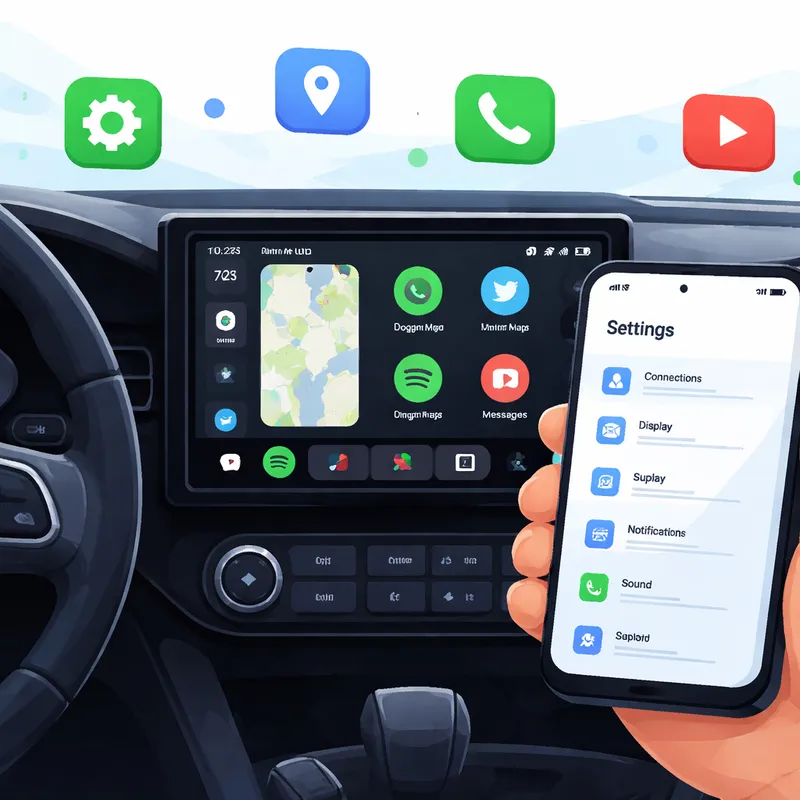
The big idea is simple: anything that reduces taps, glare, clutter, or surprise audio makes your drive better. A cleaner Android Auto screen means less time hunting for apps. Smarter map colors help at night. Smaller or fewer notifications keep your eyes where they should be.
Most of these changes happen on your phone, not on your car display. If you are wondering, "Where is Android Auto on my phone?" open your phone Settings and search for Android Auto. On some phones, the path looks like this:
- Samsung Galaxy: Settings > Connected devices > Android Auto
- Google Pixel: Settings > Connected devices > Connection preferences > Android Auto
If Android Auto not working is already your problem, do these setup steps first. A lot of connection headaches come from messy defaults, locked-phone behavior, or overloaded app lists.
1) Customize the launcher so you only see what you use
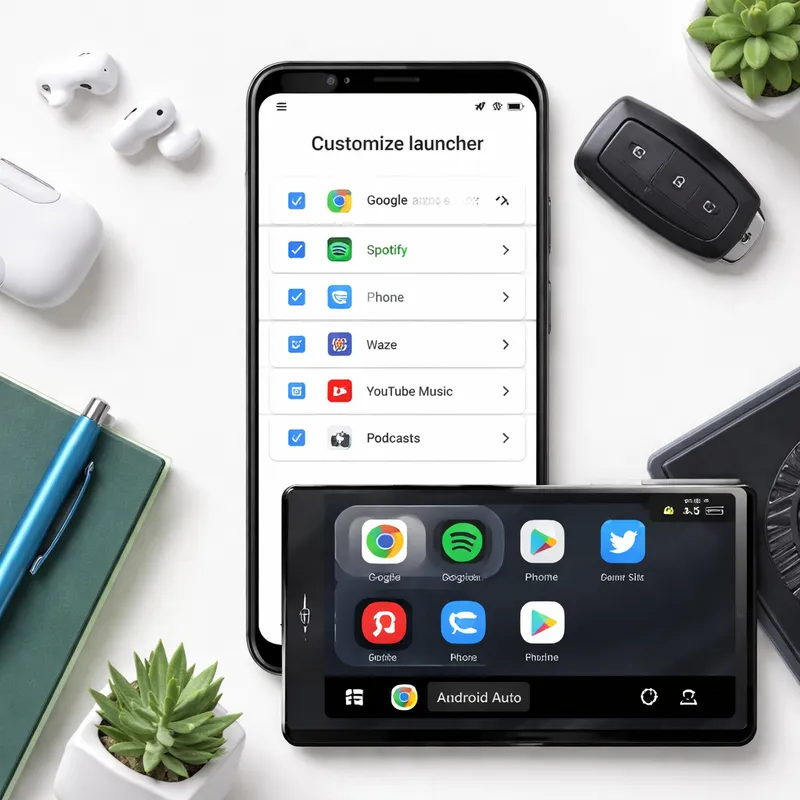
This is the first tweak I always make. Android Auto shows every supported app by default, and that gets annoying fast. If you only use Google Maps, Spotify, YouTube Music, and messages, why scroll past the rest?
Open your phone's Android Auto settings and tap Customize launcher. Then:
- Uncheck apps you never use
- Drag your most-used apps to the top
- Add shortcuts for common actions like calling a favorite contact
- Add a Gemini or Assistant action if you use voice routines
A small launcher change makes a big difference in real driving. On a smaller head unit, a cluttered app drawer feels worse. I like putting navigation first, music second, and calls third. That way, I do not have to think about where anything is.
One quick note: if your phone is already connected to Android Auto, you may need to restart the session before the new app order shows up.
2) Fine-tune how your navigation app looks and functions
Bright maps at night are rough. If your cabin is dark and your map suddenly flips to a bright theme, it can be distracting in the worst way.
Go to Android Auto settings > Maps > Day/Night mode for maps. From there, you can choose:
- Automatic if you want Android Auto to switch based on lighting
- Night if you want a darker map all the time
- Day if you prefer the brighter view
For me, forcing Night is the safer option on evening drives. It cuts glare and feels easier on the eyes. If you drive in mixed conditions, Automatic is still a solid choice.
This is one of the simplest ways to Improve Android Auto without changing anything complicated. If you use Google Maps or Waze, you can also check their own route and navigation settings for more car-friendly behavior.
3) Start Android Auto automatically and while locked
This one saves you from the classic parking-lot fumble. You get in, start the car, and then realize Android Auto did not fully launch because your phone is still locked.
In your phone's Android Auto settings, look for Startup and turn on:
- Start Android Auto automatically
- Start Android Auto while locked
When this is enabled, the car screen feels ready sooner. Your maps open faster, media controls appear without extra steps, and your route keeps updating more reliably.
This is also a useful Android Auto disconnect fix in some cases. Not every disconnect is caused by this setting, of course, but many people mistake slow startup or paused app behavior for a broken connection.
If Android Auto not working keeps happening, also check these basics:
- Try a high-quality USB cable if you use wired mode
- Remove old paired car connections and reconnect
- Restart the phone and the car infotainment system
- Update Android Auto and Google Play services
4) Reduce distractions from messages and surprise music
I group these together because both happen at the worst time. You are pulling out into traffic and suddenly a group chat lights up the screen, or your podcast starts blasting from yesterday.
Here are the two settings I change:
Hide group conversations
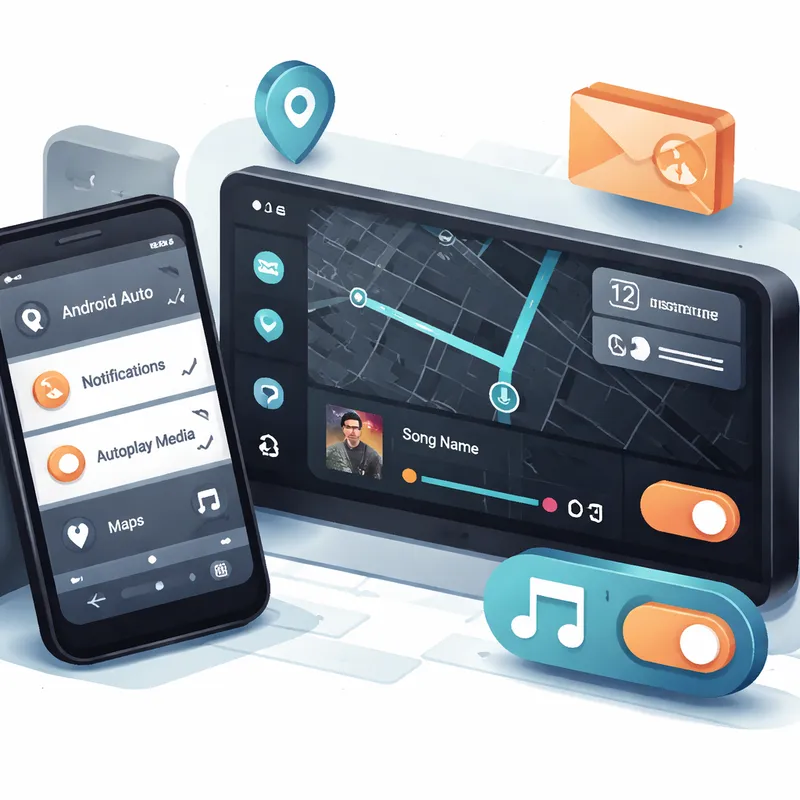
Go to Android Auto settings > Messaging and turn off:
- Show group conversations
If you want even more privacy, you can also turn off message notifications completely. That is a smart move if your car screen is visible to passengers or you just do not want chat previews while driving.
Stop music from starting automatically
Go to Android Auto settings and turn off:
- Start music automatically
This is one of my favorite Android Auto tweaks because silence is sometimes the right default. Maybe you are on a short school run. Maybe someone in the car is on a call. Maybe you just want a calm start.
If music still auto-plays after you disable it, check your music app too. Some apps have their own autoplay or resume setting that can override Android Auto behavior.
5) Use Android Auto developer settings for hidden controls
This is the only advanced tweak on the list, but it is still worth knowing. Android Auto developer settings unlock extra options that Google does not put front and center.
To enable them:
- Open Android Auto settings on your phone
- Scroll to Version
- Tap it several times until developer mode turns on
- Open the three-dot menu
- Tap Developer settings
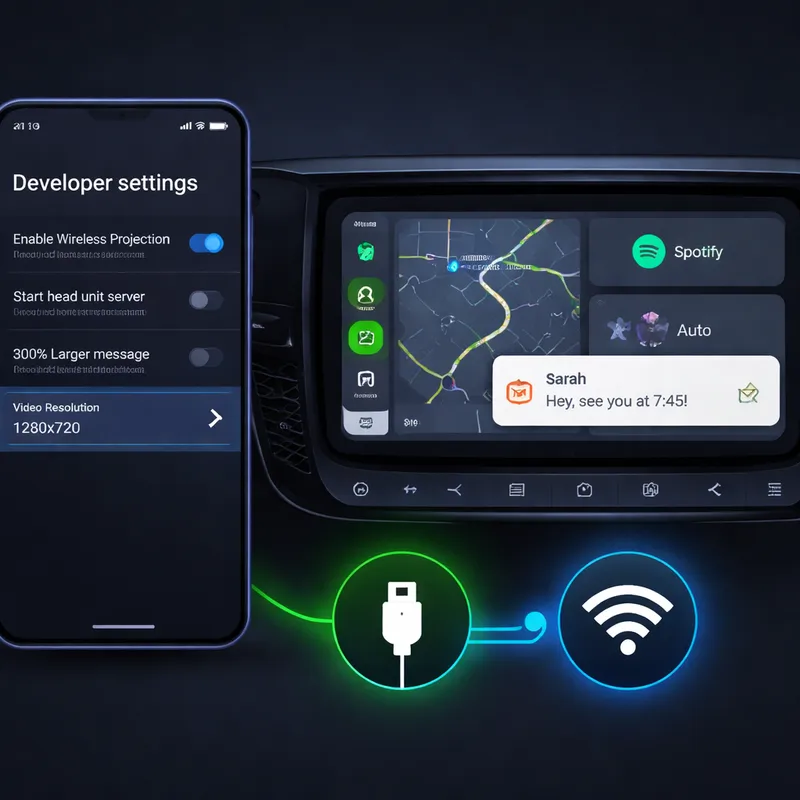
Inside, the most useful option for many people is Video Resolution. Raising the resolution to 1080p or higher, if your car screen supports it, can make the overall interface look smaller and cleaner. That includes notifications, which often feel way too large by default.
You may also see options like disabling wireless Android Auto. That can help if you prefer a more stable wired connection or want to troubleshoot random dropouts.
This is not the first tweak I suggest to beginners, but it is one of the best if you want to really Customize Your Android Auto Experience.
Bonus tips if you want to improve Android Auto even more
A few extra tweaks are worth checking after the core five:
- Add launcher shortcuts for one-tap actions like calling home or starting a route to work
- Turn on taskbar widgets if your car supports quick media controls while navigating
- Check Do Not Disturb or Driving Mode on your phone for tighter notification control
- Keep your apps updated if Android Auto app features seem missing
Some people also search for Android Auto beta APK to try newer features early. I would only do that if you are comfortable with test software and possible bugs. For most drivers, the stable release is the better call.
Common mistakes people make on day one
A few small mistakes can make Android Auto feel worse than it really is:
- Leaving every app visible in the launcher
- Keeping bright map mode at night
- Letting group chat previews fill the screen
- Forgetting autoplay is enabled
- Ignoring hidden developer options when notifications feel oversized
Android Auto is one of those tools that gets better the moment you trim the noise.
FAQ
How to access Android Auto Secret Menu?
The Android Auto Secret Menu usually means Developer settings. Open Settings > Android Auto on your phone, scroll to Version, and tap it several times. After developer mode is enabled, open the three-dot menu and tap Developer settings.
How to make your Android run smooth and fast?
Start with the basics. Swipe down, open Settings, and check your storage, battery, and app usage. Remove apps you do not use, restart your phone, install updates, and clear out old files. Turning off unnecessary background activity can also help. If Android Auto feels slow, update the Android Auto app, Maps, and Google services too.
Is Android Auto being phased out?
No, Android Auto for car screens is not being phased out. What Google phased out was Android Auto for phone screens a while back. For cars with compatible infotainment systems, Android Auto is still active and widely supported in 2026.
How to find sneaky stuff on Android?
If you mean suspicious apps or hidden behavior, start by checking Settings > Apps for anything you do not recognize. Review notification access, accessibility access, device admin apps, VPNs, and battery usage. You should also scan with Play Protect, review permissions, and uninstall anything shady. If the concern is car-related, also check which apps have Android Auto access.
Final thoughts
If you only change five things, change these: clean up the launcher, fix map appearance, enable startup options, calm down notifications, and unlock developer settings if you want more control. That is the fastest way to make Android Auto safer, smoother, and less annoying from day one.
The nice part is that none of this takes long. Ten minutes in your driveway can save you a lot of taps later.

